Opening Shortly WordPress Theme Documentation
Welcome to Opening Shortly WordPress Theme. This documentation will guide you. If you need any help, please see the Support section.
1. Theme Installation
a. Through WordPress Dashboard
- Go to the menu Appearance » Themes and click on Add New button.
- Click on Upload Theme button.
- Click on Browse button and navigate to the unzipped theme package on your computer.
- Look for a file called opening-shortly.zip Click on it to select, then click OK.
- Click on Install Now button and wait until the installation is complete.
- Click on Activate link to activate the theme on your WordPress site.
b. Manual Installation using an FTP client
If you know the FTP login details for the server where your site is hosted and you have an FTP client installed (such as FileZilla), you can upload the theme using FTP.
- Unzip the opening-shortly.zip file.
- Use an FTP client to access your host web server and go to /wp-content/themes.
- Upload the unzipped theme folder to /wp-content/themes/.
- Go to Appearance » Themes and activate the theme from the Dashboard.
Unzip the download file, find the zip file named opening-shortly.zip, unzip it, and upload the folder to the main WordPress installation folder: wp-content » themes. Make sure the theme's main files are contained within a single folder inside themes.
After uploading, activate the theme from Appearance » Themes. You should see Opening Shortly. Click Activate to enable the theme.
c. Plugin Installation
Download customizer-export-import.zip and upload the plugin through the Plugins section.
- See the plugin page: https://wordpress.org/plugins/customizer-export-import/ — it explains how to upload and use the plugin.
- After installing the plugin, activate it. Then go to Appearance » Customize » Import/Export.
- Download the demo settings file (.dat):
- If the file does not download automatically, save it as opening-shortly-pro-export.dat.
- Upload the opening-shortly-pro-export.dat file in the Import section to install theme settings.
2. Homepage Setup
After activating the Opening Shortly theme, set up the homepage as follows:
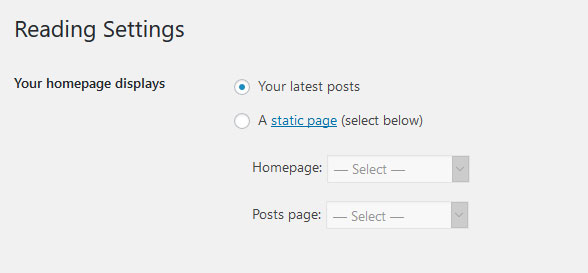
- Go to Settings » Reading » Your homepage displays
- Select the radio button for Your latest posts
- Go to Appearance » Theme Options and click Restore Defaults at the bottom
3. The header
The header consists of Two main elements:
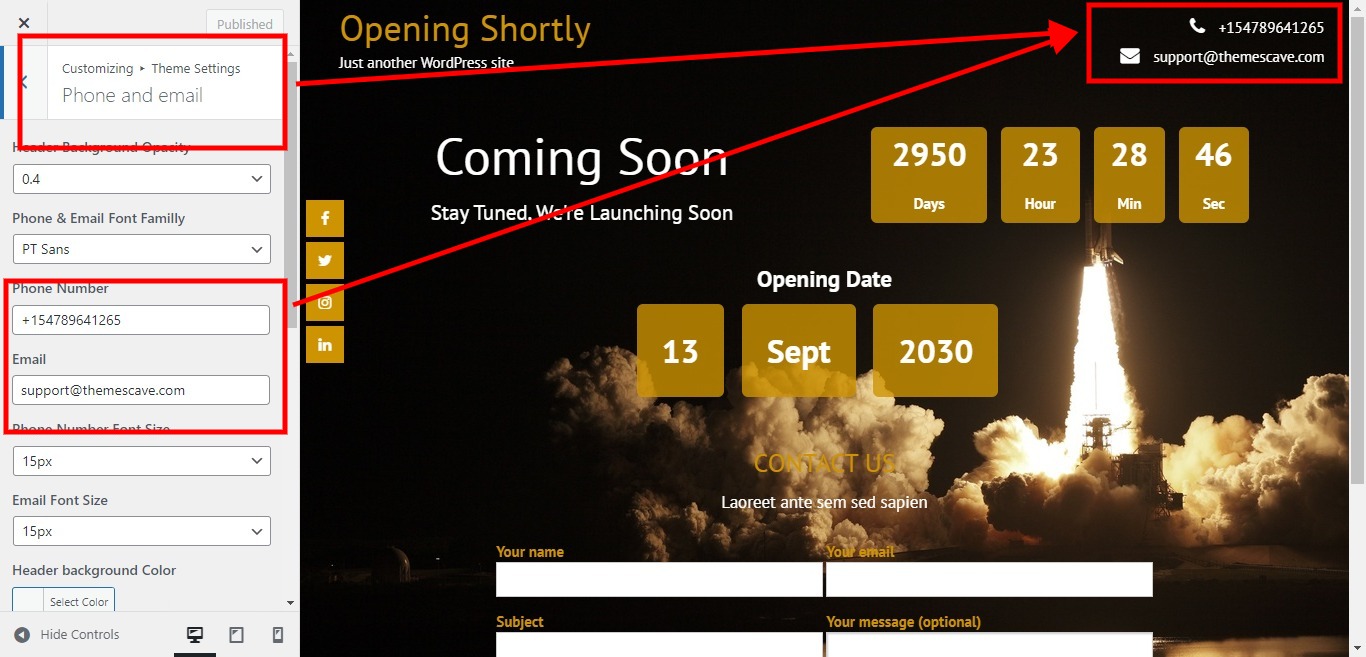
- Contact info & Phone Number
- Site Name / Logo
- Social Media

a. Contact info
To customize the top header bar contact information and phone number, go to Appearance » Customize » Theme Settings » Phone and Email.
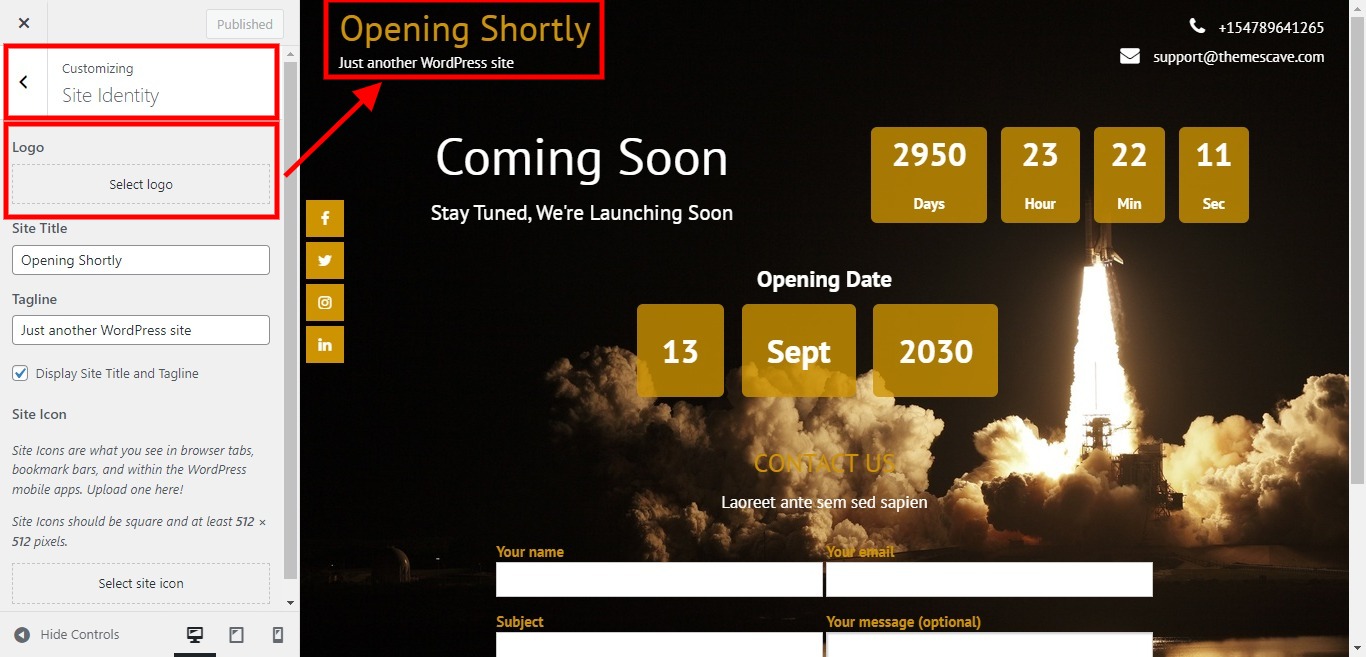
b. Changing the site name / logo
If you don't have a logo image, you can use the site name and tagline. To change the site name and tagline, go to Settings » General » Site Title or Appearance » Customize » Site identity.
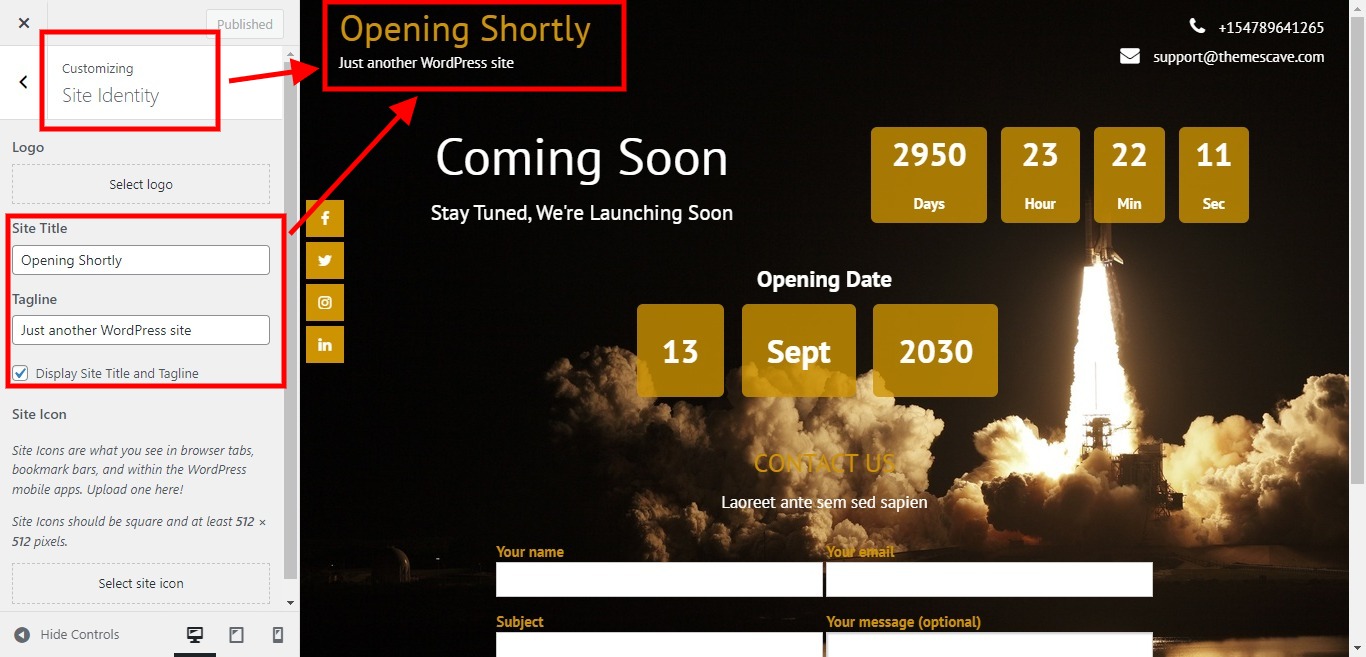
Or, to upload a logo for your website, go to Appearance » Customize » Site identity.
c. Social link
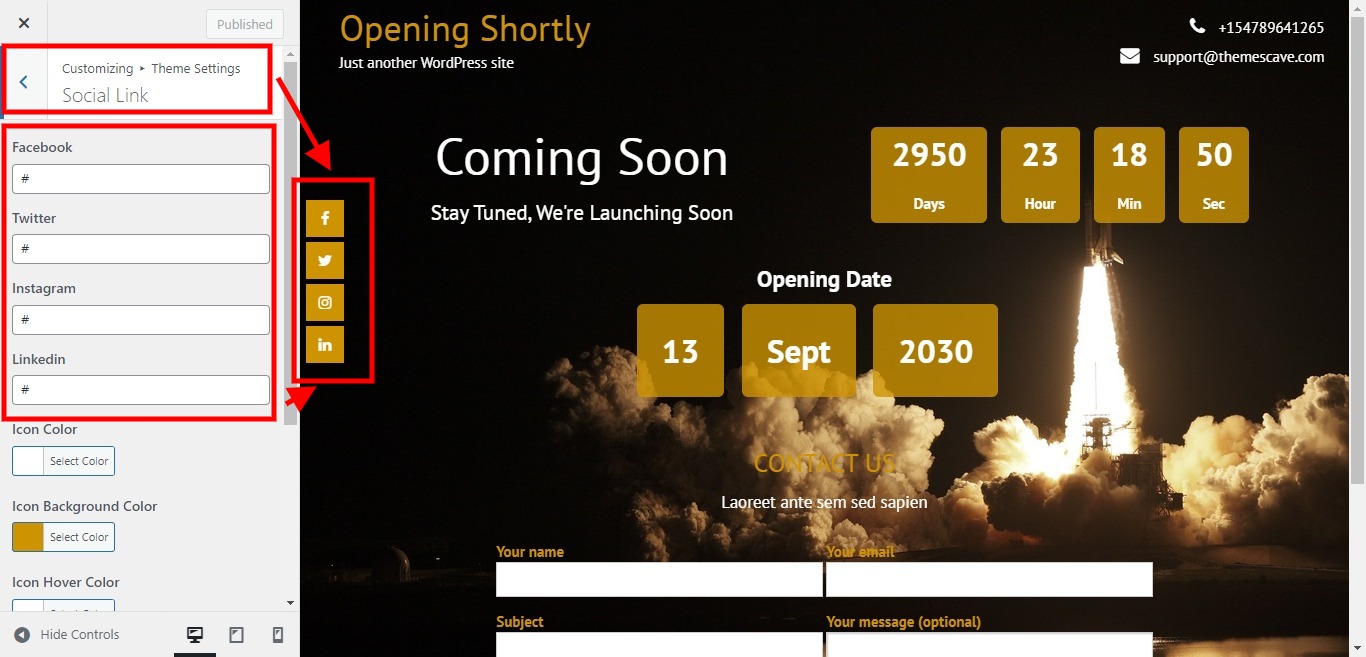
To manage this section:
Go to Appearance » Customize » Theme Settings » Social Link.
6. Homepage Section
1. Heading & Subheading
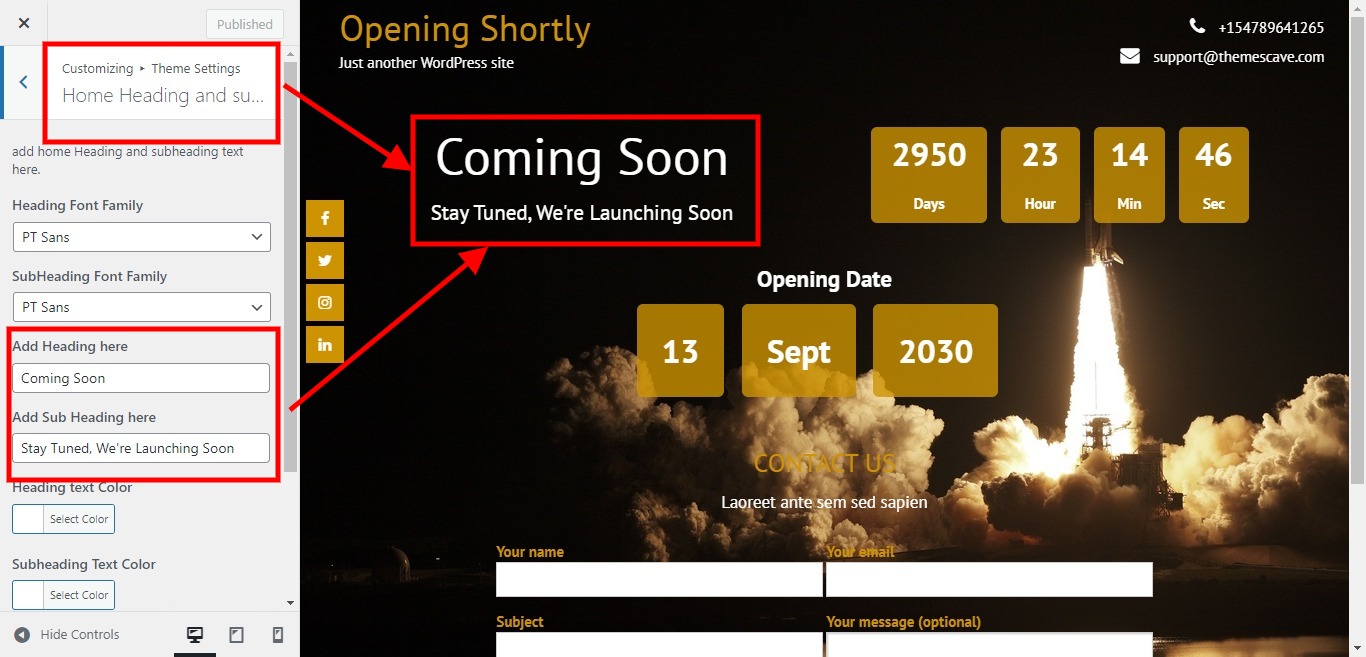
To manage this section:
- Go to Appearance » Customize » Theme Settings » Home Heading and Subheading.
- Configure colors, sizes, and font-family.
2. Time Counter
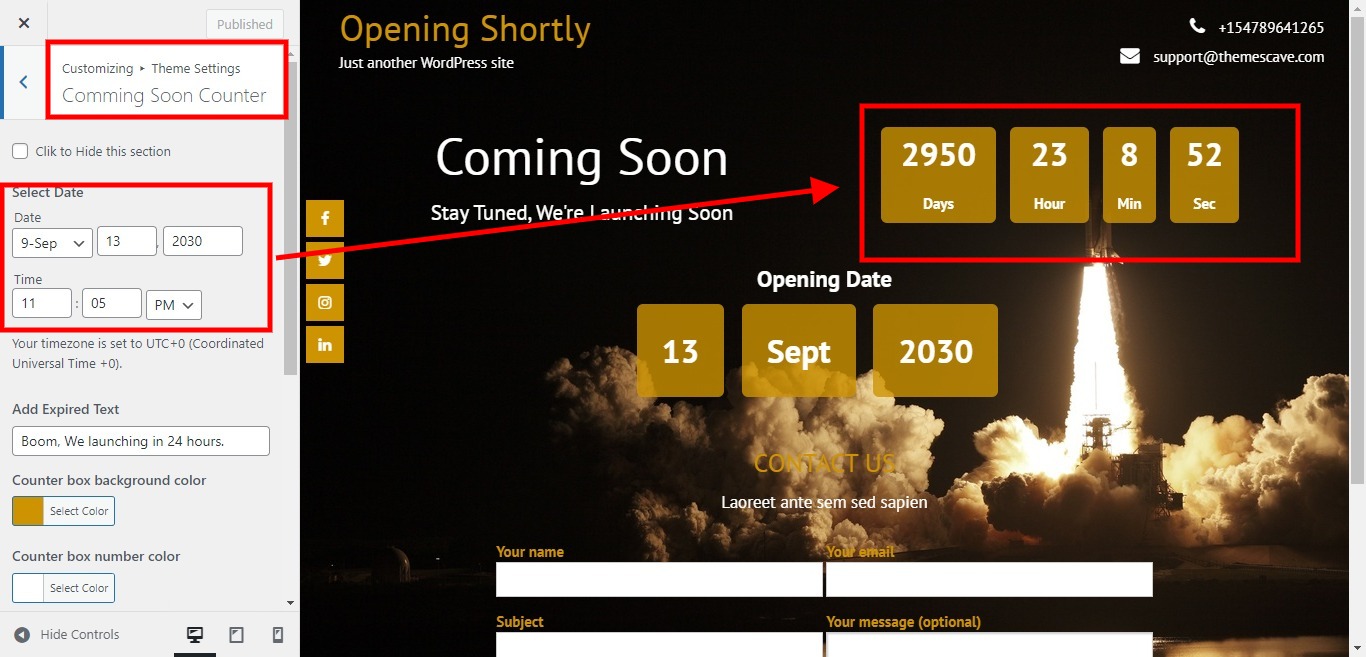
To manage this section
- Click on Appearnce » Customize » Theme Settings » Comming Soon Counter
- Then fill all fields with color, size, font-family
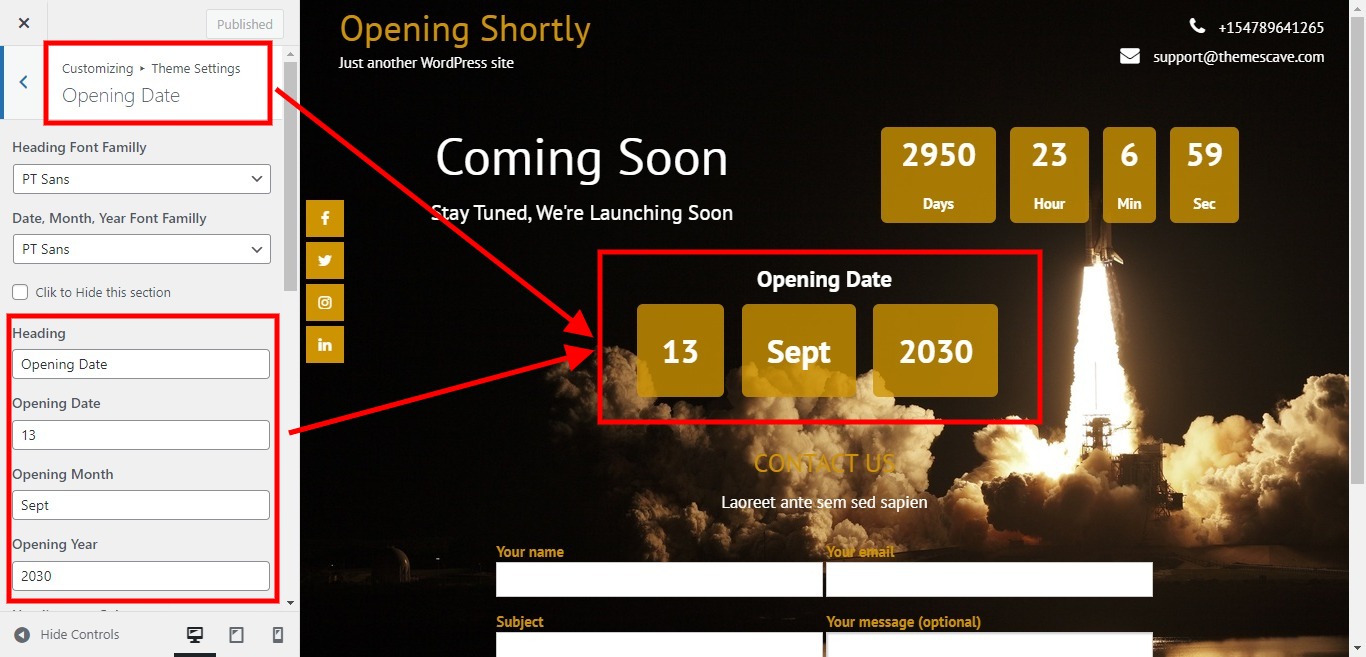
3. Opening Date
- Click on Appearnce » Customize » Theme Settings » Opening Date
4. Enquiry Section
To manage this section go to Appearnce » Customize » Enquiry Form
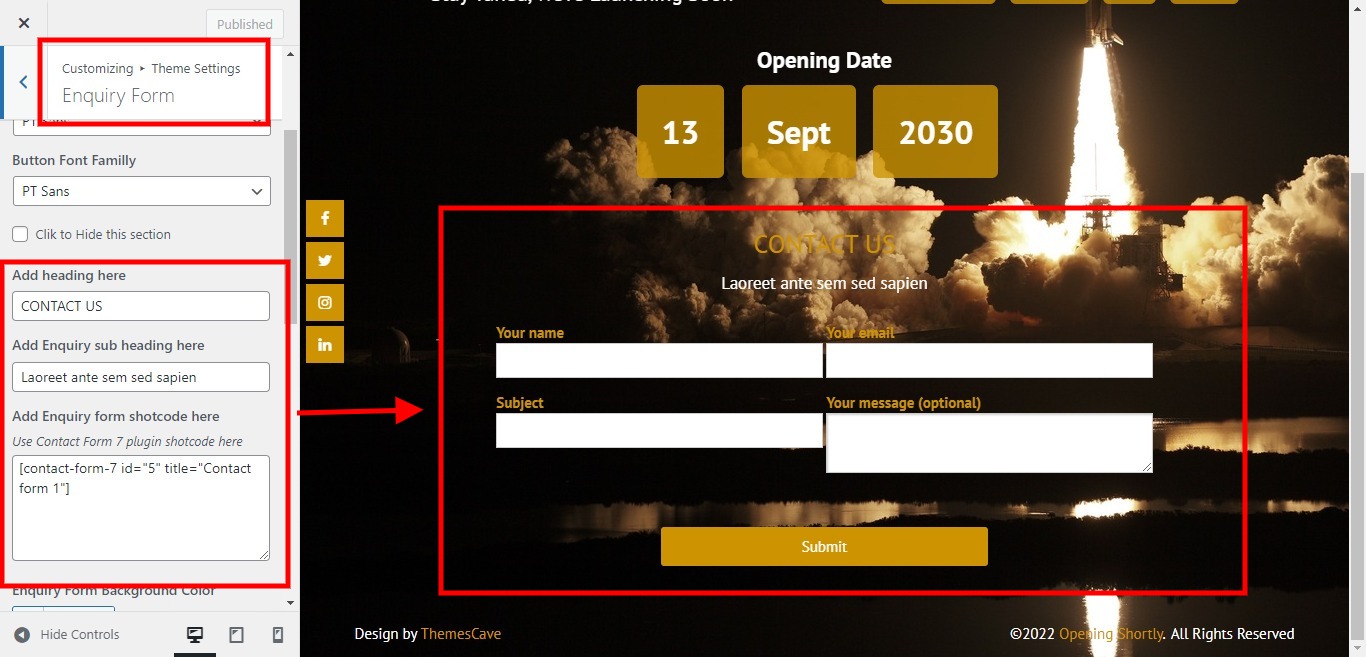 Shortcode/Content:
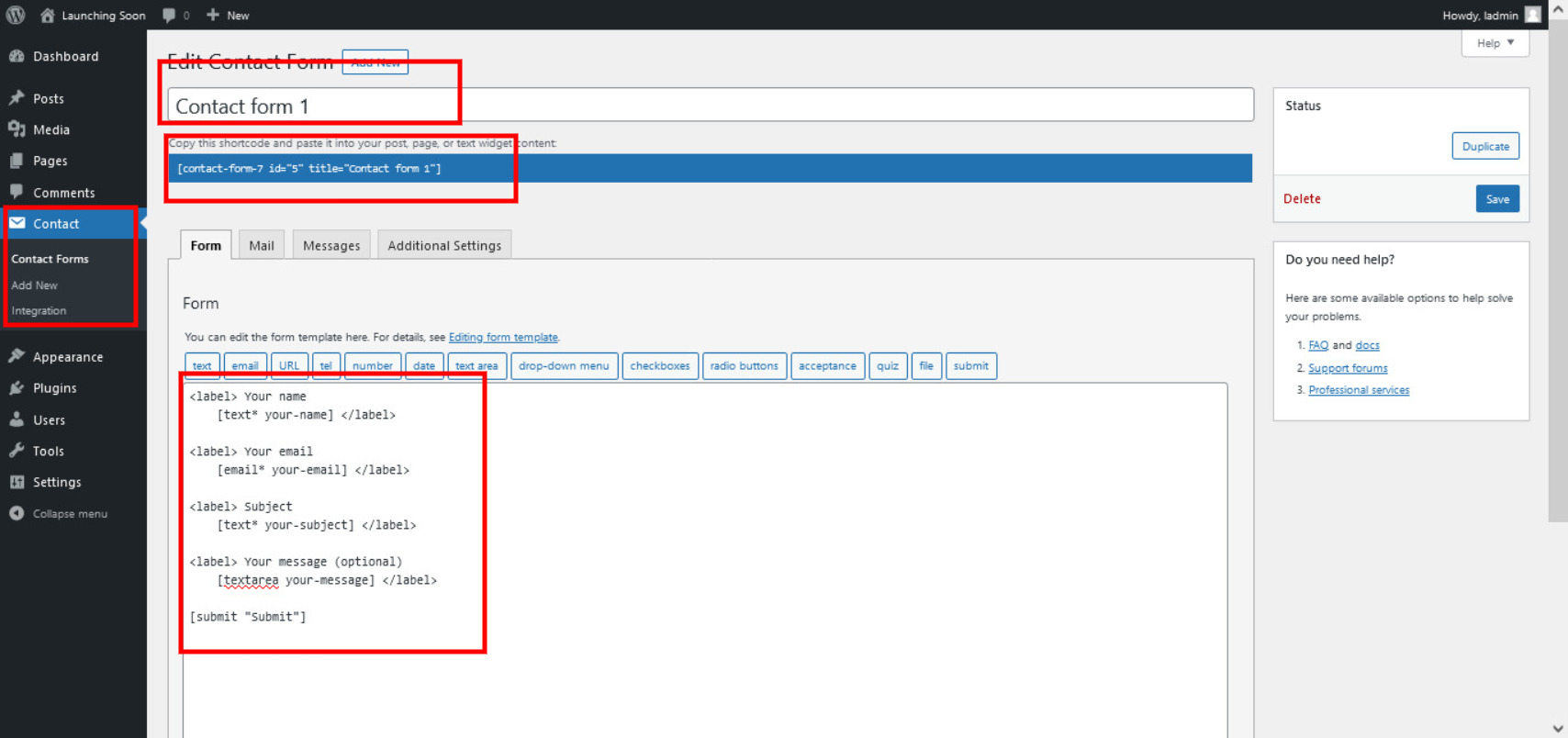
To add plugin go to Plugins » Add New » enter Contact Form 7 » Then click on Install » Activate
Add contact form 7 plugin shortcode add Enquiry form shotcode here box
Install Contact form 7 plugin and activate it. After that go to click on Contact » contact forms » Contact form 1 and add bellow code in Form Section
[submit "Submit"]
5. Background
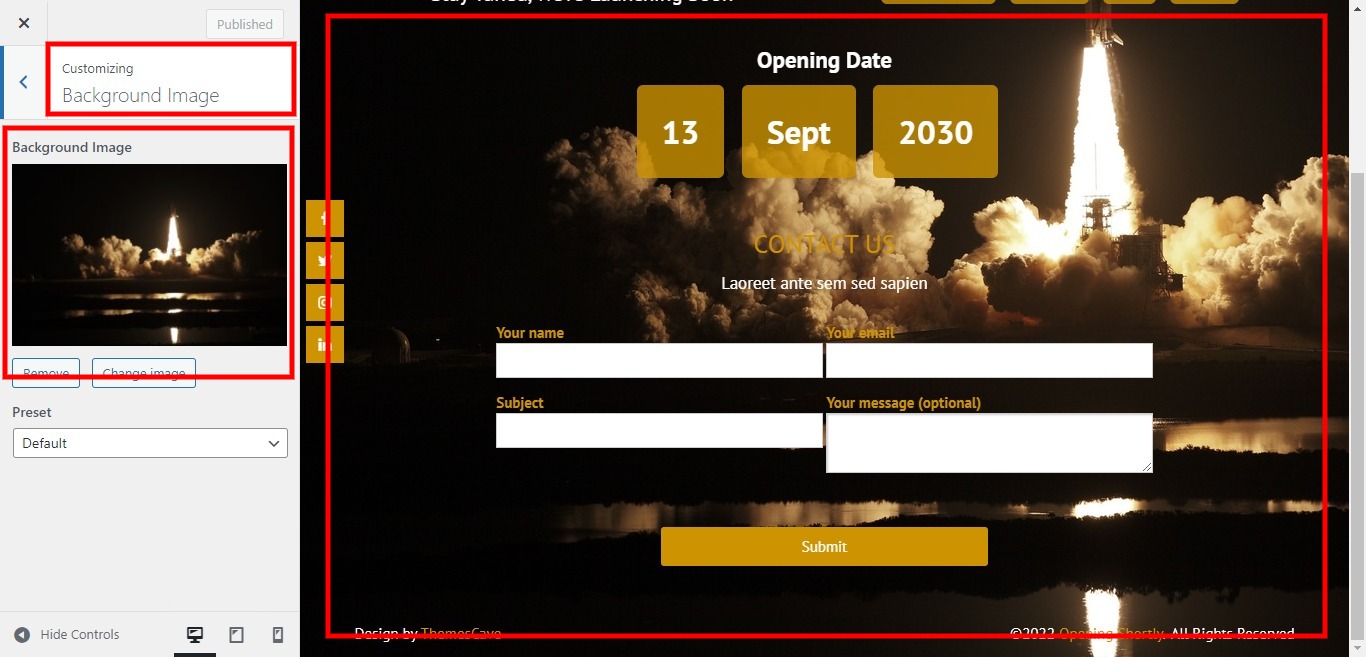
- Click on Appearnce » Customize » Background Image
- Please upload image size 1800px*1145px
- Select Fill Screen from Present
7. Footer
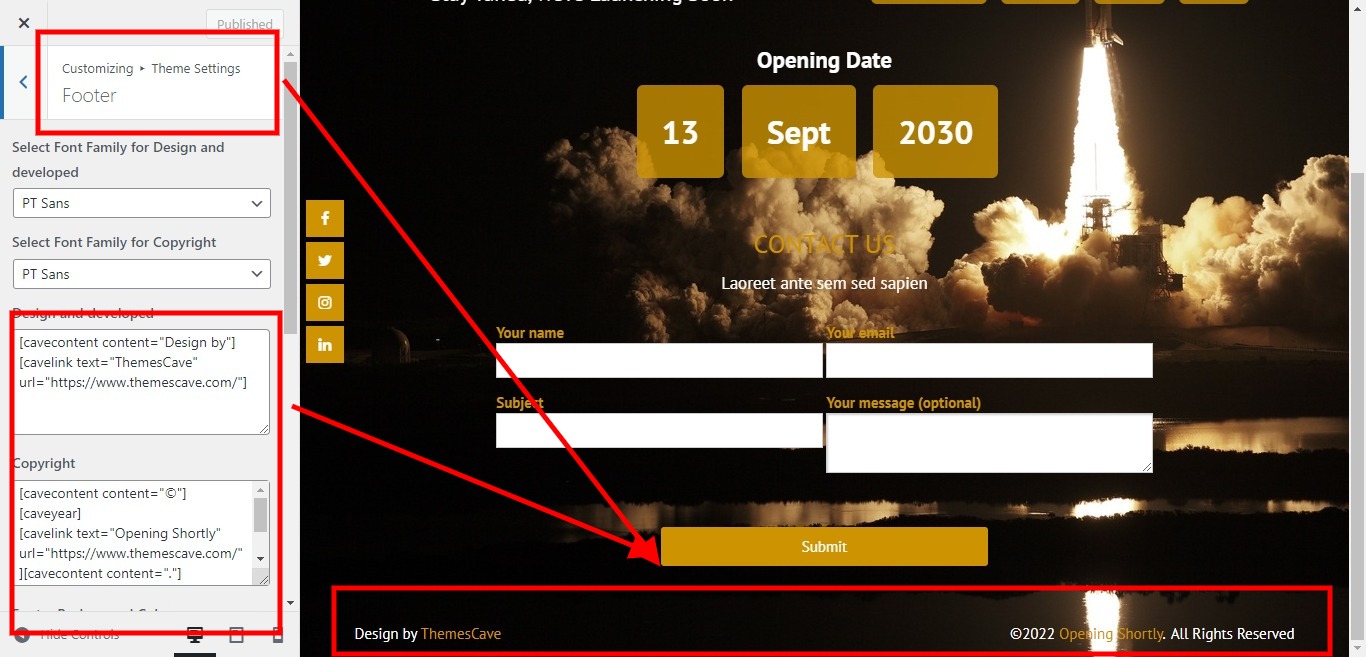
The Footer section consists of two main elements:
- Design Developed Text
- Copyright Text
[cavecontent content="Design by"]
[cavelink text="ThemesCave" url="https://www.themescave.com/"]
Use the shortcode below for copyright
[cavecontent content="©"]
[caveyear]
[cavelink text="Opening Shortly" url="https://www.themescave.com/"]
[cavecontent content="."]
[cavespacemargin right="5"]
[cavecontent content="All Rights Reserved"]
To manage footer section go to the Appearance » Customize » Theme Settings » Footer